How to use an Airtable form to update a record
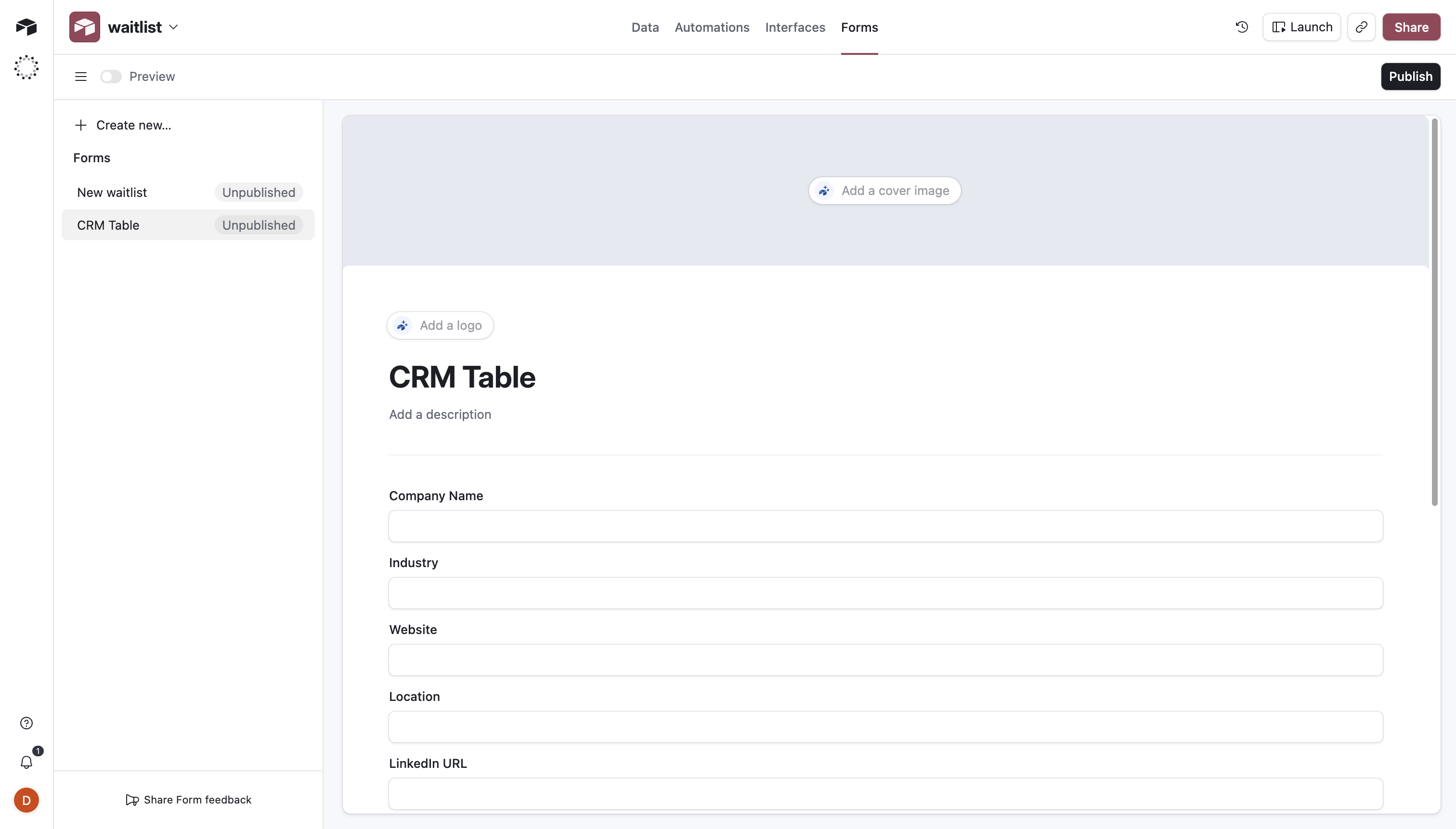
Every Airtable form submission creates a new row. There's no option to load an existing record, let a user change a few fields, and save those changes back. No setting. No workaround buried in the docs. The feature doesn't exist.
This becomes a real problem the moment your workflow needs someone to edit data they already submitted. A sales rep needs to update a deal stage. A client needs to change their mailing address. A warehouse worker needs to adjust a stock count. In every case, the native Airtable form creates a duplicate row instead of modifying the original.
Your base fills up with near-identical records. Someone has to manually reconcile them. The data you trusted for reporting and automations drifts from reality.
Here's what people try, what actually works, and how to set up update forms that write back to the correct row.
Build Airtable update forms that actually work. Load existing records, lock the fields that matter, and write changes back to the same row
Why native Airtable forms cannot update records
Airtable forms are a one-way insert mechanism. When someone opens a native form, every field is blank. On submit, it writes a new row. That's the entire scope of the feature.
You can't pass a record ID into a native form URL. There's no parameter to load existing values. No write-back path that targets a specific row instead of creating a new one.
This applies to every Airtable plan: Free, Team, Business, and Enterprise. The form view hasn't received meaningful feature investment in years, and editing support isn't on any public roadmap.
What teams actually need is a form that does four things:
- Accept a record identifier (a record ID, email, or order number)
- Load that record's current field values into the form
- Let the user see what already exists and change only what needs changing
- Write those changes back to the same row, not a new one
Native Airtable forms do none of these. If you need any of them, you're looking at workarounds or third-party tools. For a broader look at what native forms can and can't do, see how to create forms in Airtable.
Common workarounds and their limits
Workaround 1: Give users direct base access
The quickest approach. Add people as collaborators and let them edit records in grid view.
The problems show up fast. Every editor needs a paid Airtable seat on Team plan or above. They can see and modify every record in the table, not just their own. Accidental deletions happen regularly. And the grid interface overwhelms non-technical users who just need to update one or two fields.
Workaround 2: Use Airtable Interfaces
Airtable Interfaces let you build record detail layouts with editable fields. This is Airtable's closest answer to the update form problem, and it works for internal teams that already have base access and paid seats.
Beyond that narrow use case, the limits hit hard. Users still need at least commenter-level access to the base. Interfaces can't generate a direct link to a specific record for editing. There's no conditional logic to show or hide fields based on the record's data. And they're not designed for external users, clients, vendors, or anyone without an Airtable account. For more on editing records through forms, see Airtable edit record forms.
Workaround 3: Automation that matches and updates
Some teams build a two-step process: collect changes through a regular form, then run an automation that finds the matching record by email or ID and overwrites the fields.
This approach has a fundamental UX problem: users can't see the current values before submitting changes. They're editing blind. There's also no validation that the record exists before the form is submitted, and debugging failed matches means digging through automation logs. For teams that have tried to make this work with prefilled form fields, the limitations stack up quickly.
Workaround 4: Custom code with the Airtable API
You can build a frontend that fetches a record via the Airtable API, renders it in a custom form, and PATCHes the changes back. Some teams use scripting extensions or tools like Softr.
This works if you have engineering resources. It's not practical for operations teams, customer success managers, or anyone who needs something working by end of day.
What a real update workflow requires
Before picking a tool, here's what a working update form actually needs. None of the workarounds above fully clear this bar.
Record lookup. The form needs to know which record to load. The cleanest approach is a URL that includes the record ID, so each record gets its own unique edit link.
Current-value prefill. When the form opens, it should display the record's existing data. The user sees what's already there before making changes. No guessing.
Field-level permissions. Not every field should be editable. Some should be read-only (visible for context but locked). Others should be hidden entirely. A client updating their phone number shouldn't see internal notes or deal values.
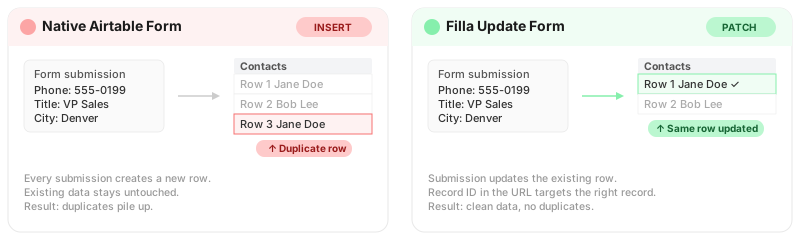
Write-back to the same row. On submit, the form should update the existing record, not create a new one. This is the difference between a PATCH and an INSERT, and it's the single most important requirement.
Audit trail. The table should track when a record was last modified through a form and, ideally, what changed. A "Last Updated" timestamp field and an "Update Source" field handle this cleanly.
How to build an update form with Filla
Filla is a form builder made specifically for Airtable. It connects to your base via OAuth, reads your schema automatically, and supports update forms as a core feature. Here's how to set one up.
Step 1: Connect your Airtable base
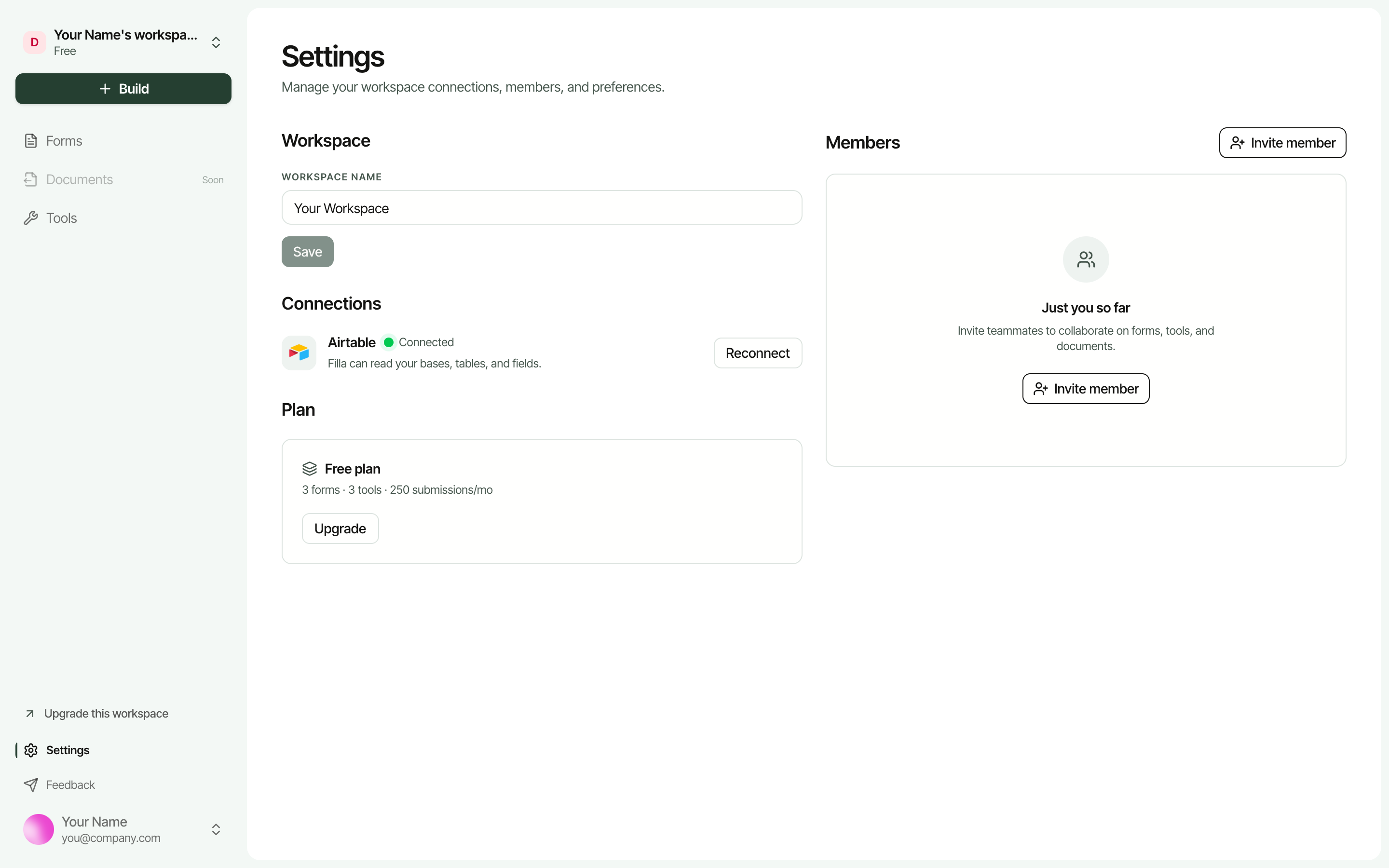
Authorize Filla to access your base. It reads your tables, field names, field types, select options, and linked record relationships. No manual field mapping. No CSV import. Your schema stays in sync.
Step 2: Set the form mode to update
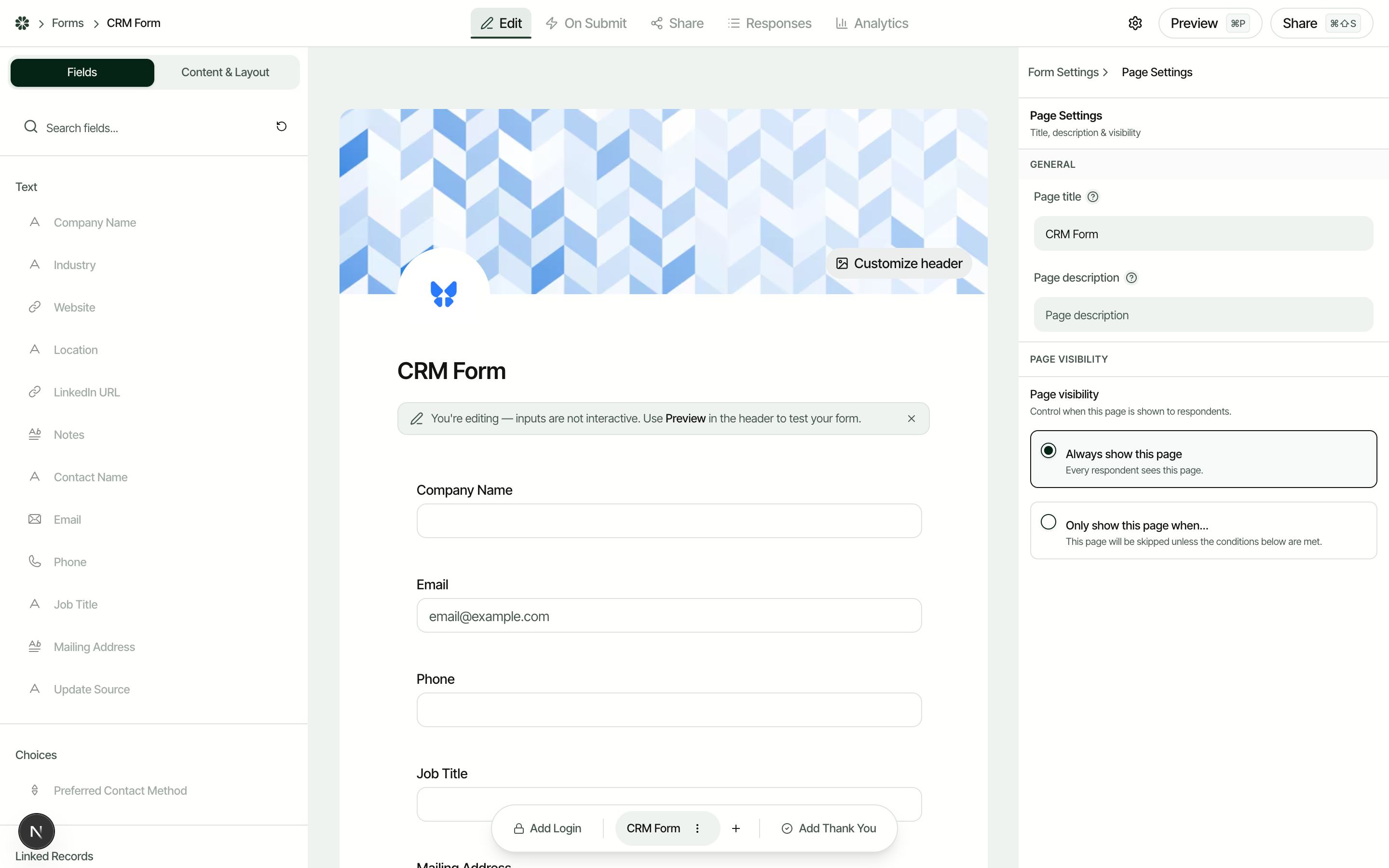
When you create a new form, set the mode to "update" instead of "create." This changes the form's behavior entirely. Instead of rendering blank fields, the form expects a record ID in the URL and loads that record's current values when opened.
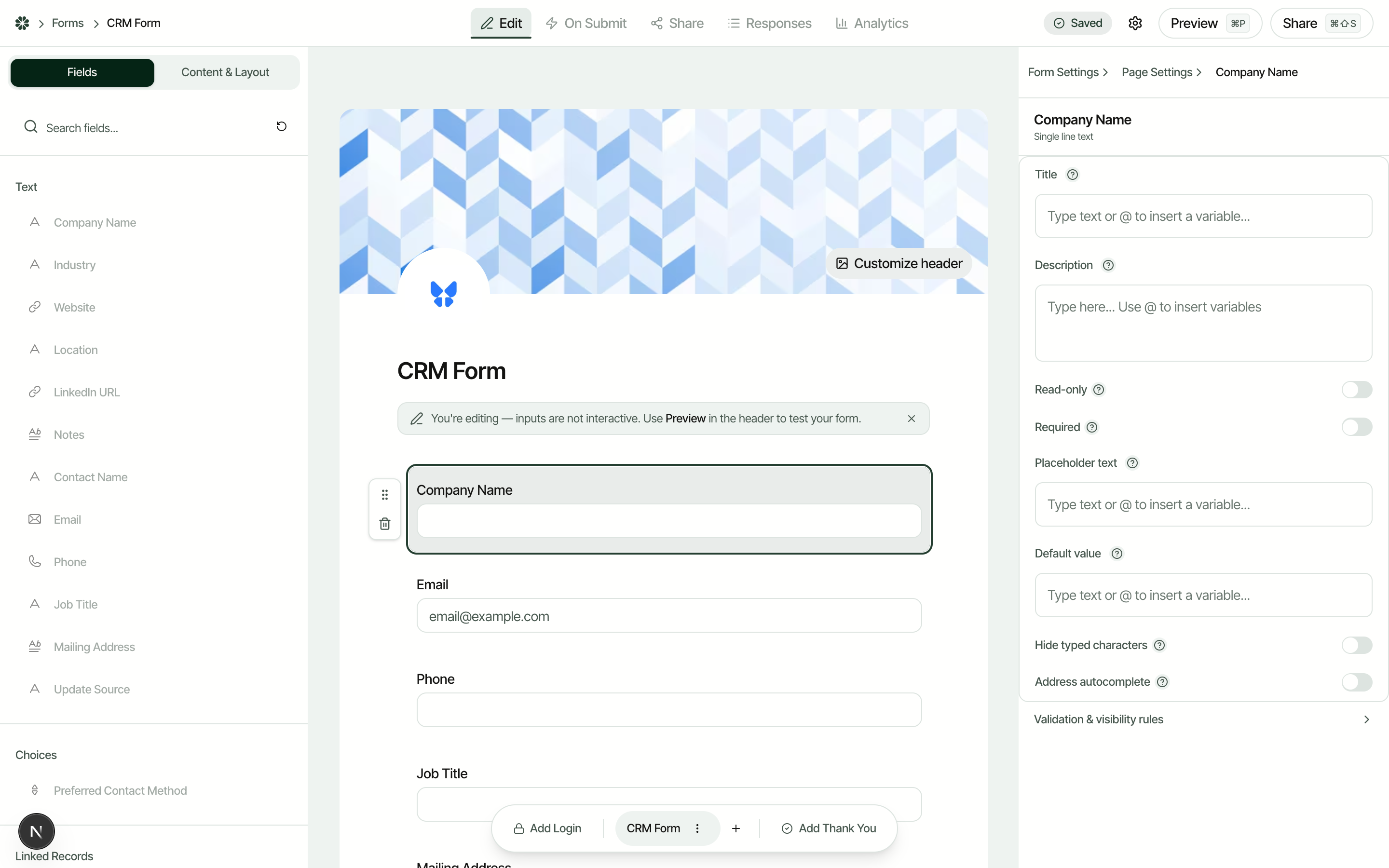
Step 3: Choose which fields appear and set permissions
Add the fields you want on the form and set each one to editable, read-only, or hidden.
For example, on a CRM contact update form, you might configure fields like this:
- Read-only: Contact Name, Email, Company (visible for context, locked from editing)
- Editable: Phone, Job Title, Mailing Address, Preferred Contact Method
- Hidden: Internal Notes, Owner, Last Updated (not shown to the person filling out the form)
Read-only fields serve an important role. They confirm the user is looking at the right record before they start making changes.
Step 4: Generate record-specific links
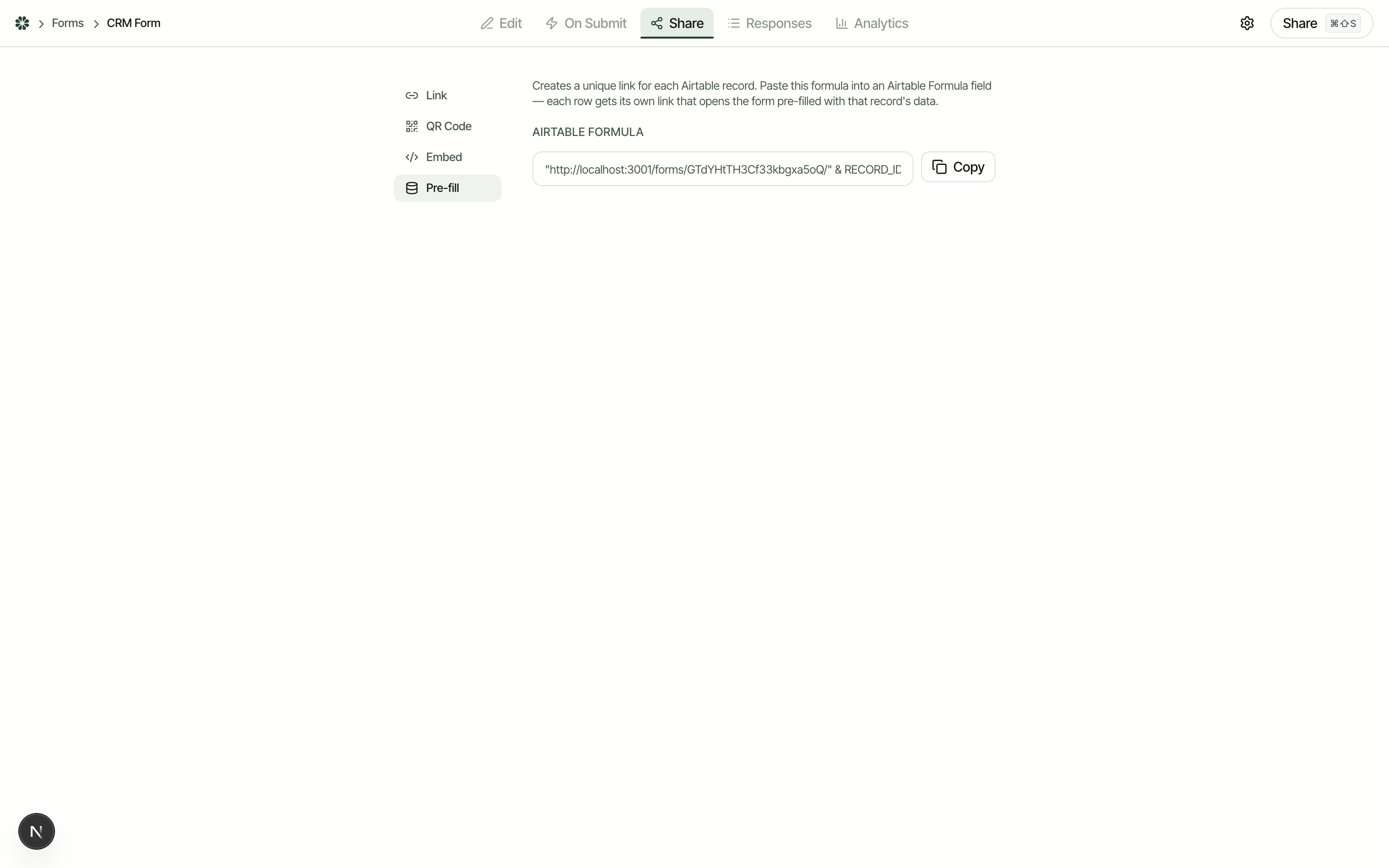
Each record gets a unique edit URL. The structure is simple: your form's base URL followed by the Airtable record ID.
Filla provides an Airtable formula you can paste into a formula field in your table:
"https://app.filla.io/forms/your-form-id/" & RECORD_ID()
This gives every row in your table its own edit link. You can use that formula field in automations, email templates, or shared views.
Step 5: Share the edit links
Distribute the per-record links however fits your workflow:
- Email automations: trigger an Airtable automation that sends the edit link when a record is created or a status changes
- Shared views: include the formula field in a shared grid or gallery view so users can click their own link
- Embed: drop the form into a portal, internal tool, or client dashboard
For more on distributing forms with pre-filled data, see Airtable form prefill workflows.
Step 6: What happens on submit
When the user submits, Filla writes the changes back to the original record. No new row. The record ID in the URL tells Filla exactly which row to update.
You can configure what happens after submit in two ways:
- Show a thank you page: standard confirmation screen
- Stay on the form: the form stays open and shows a "Changes saved" message, useful for workflows where users make multiple edits in one session
If your table has a "Last Updated" or "Last Modified Time" field, it refreshes automatically. You can also set a text field like "Update Source" to auto-populate with "Form" on each submission, so you can distinguish form edits from manual changes in the base.
Example: CRM contact update form
Say your sales team runs a CRM in Airtable. Reps need to update contact details after calls. Clients need to verify their own information quarterly. Both groups need to edit existing records without creating duplicates.
The Airtable schema
| Field Name | Field Type | On Form | Permission |
|---|---|---|---|
| Contact Name | Single line text | Yes | Read-only |
| Yes | Read-only | ||
| Phone | Phone number | Yes | Editable |
| Company | Linked record (Companies) | Yes | Read-only |
| Job Title | Single line text | Yes | Editable |
| Mailing Address | Long text | Yes | Editable |
| Preferred Contact Method | Single select | Yes | Editable |
| Notes | Long text | No | Hidden |
| Owner | Collaborator | No | Hidden |
| Last Updated | Last modified time | No | Auto |
| Update Source | Single line text | No | Auto |
| Edit Link | Formula | No | Internal use |
The "Edit Link" field uses the formula from Step 4 to generate a per-record URL.
What the user sees
When a contact clicks their edit link, the form loads with their current name, email, and company visible but locked. They see their existing phone number, job title, and address pre-filled in editable fields. They change what is outdated and submit.
The record updates in place. No duplicate. No manual reconciliation. The "Last Updated" timestamp refreshes, and "Update Source" marks the change as coming from the form.
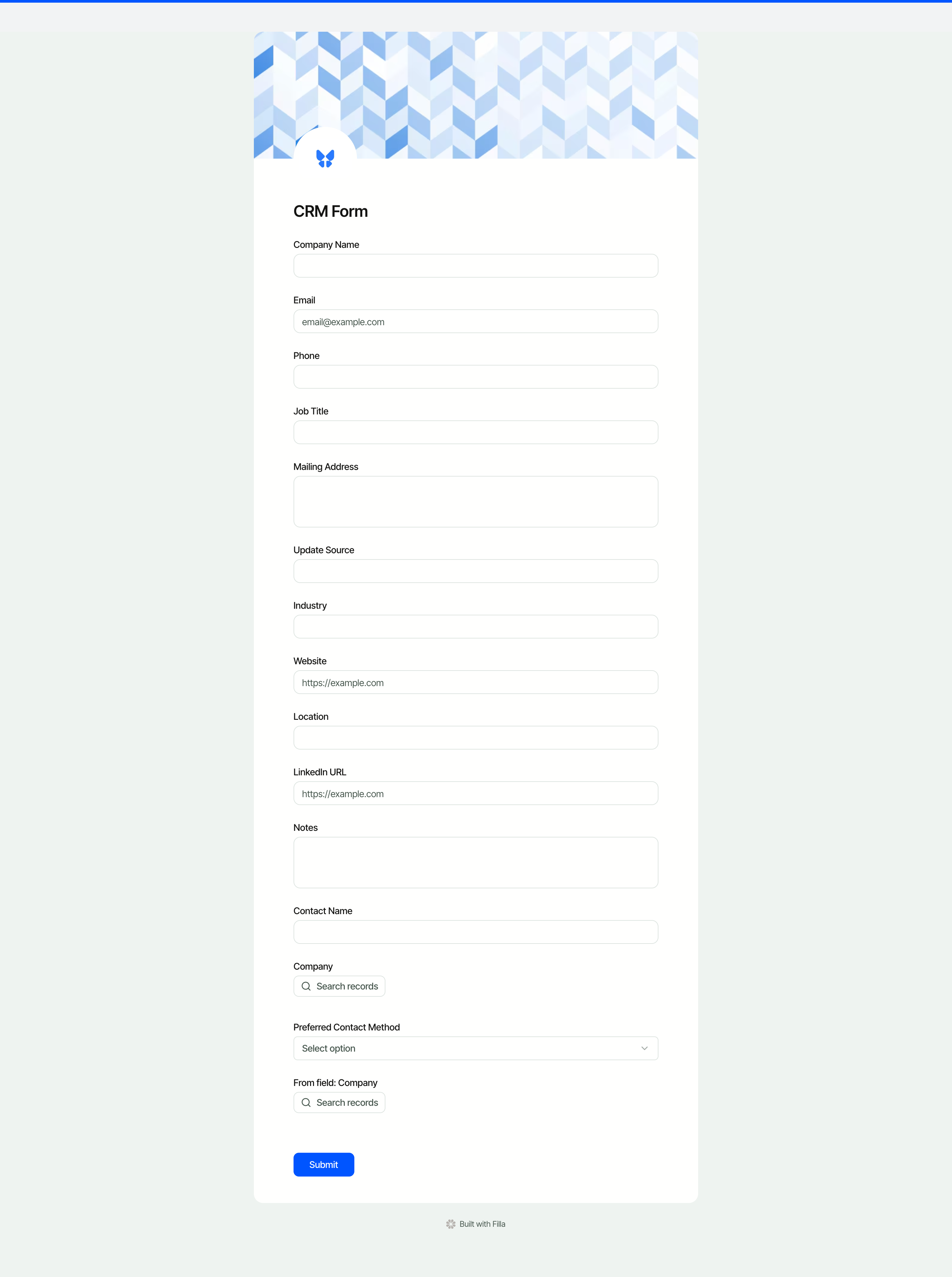
The Company field is a linked record, which means it pulls from your Companies table. In read-only mode, it displays the company name without letting the contact change it. If you need contacts to update their company, you can make that field editable and Filla will show a searchable dropdown of your Companies table.
You can also add conditional logic to the form. For example, show a "Reason for address change" field only when the Mailing Address value differs from what was originally loaded.
For a full copy-ready version of this workflow with schema details and variations, see Airtable CRM Update Form Template.
Mistakes to avoid with update forms
Making every field editable. Most update forms only need 2-4 editable fields. The rest should be read-only or hidden. Giving users access to fields they shouldn't change creates more problems than it solves.
Skipping the audit trail. Without a "Last Updated" or "Update Source" field, you have no way to know when a record was last modified through a form. Add these fields before you launch. They cost nothing and save hours of debugging later.
Sharing base access instead of form links. If you're giving clients or external partners direct access to your Airtable base just so they can edit a few fields, you're overexposing your data. Record-specific form links solve this without any base access.
Forgetting validation on updated values. An update form should enforce the same validation as a create form. Required fields, phone number formats, email validation. Just because a record already exists doesn't mean the new values should skip checks.
Using automations to deduplicate instead of preventing duplicates. If your workflow creates duplicate records and then tries to merge them after the fact, you're solving the wrong problem. An update form that writes to the correct row in the first place eliminates deduplication entirely.
FAQ
Can Airtable forms update existing records?
No. Native Airtable forms only create new records. Every submission inserts a new row. There's no setting to load an existing record into a form for editing, on any plan. To update records through a form, you need a third-party form builder like Filla that supports edit mode, or Airtable Interfaces for internal users with base access. For a full walkthrough of native form capabilities, see how to create forms in Airtable.
How do I send someone a link to edit a specific Airtable record?
Airtable doesn't offer shareable edit links for individual records. The record URL only works for base collaborators. With Filla, each record gets a unique form URL that includes the record ID. You can generate these links automatically using an Airtable formula field: "https://app.filla.io/forms/your-form-id/" & RECORD_ID(). When someone opens that link, the form loads their record's current data in editable fields.
What is the difference between Airtable Interfaces and update forms?
Airtable Interfaces are internal layouts where base collaborators can view and edit records. They require an Airtable seat and at least commenter access. Update forms built with Filla work for anyone with the link, no Airtable account needed. Filla also supports conditional field visibility, custom branding, field-level read-only permissions, and embeddable forms. Interfaces don't support any of these for external use cases.
Can I control which fields are editable on an update form?
Yes. In Filla, every field on an update form can be set to one of three states: editable (the user can change it), read-only (visible but locked), or hidden (not shown at all). This lets you show context fields like a contact name or order number without allowing modifications, while keeping internal fields like notes or owner assignments completely out of view.
Build your first Airtable update form
If your workflow needs record updates through forms, native Airtable won't get you there. Filla connects directly to your base, loads existing record data into the form, and writes changes back to the same row.
Build your first update form free →
Filla documentation
Related articles
- Airtable CRM Update Form Template
- Airtable Edit Record Form
- Airtable Forms Linked Records: Add Dropdown Support
- Airtable Forms Conditional Logic: Show/Hide Fields
- Airtable Form Prefill: Best Practices and Workflows
- How to Create Forms in Airtable
- Getting Started with Filla: Your First Form in 5 Minutes
- Filla vs Fillout
- Best Airtable Form Builders
- Airtable Form Builder
- Pricing